1
Download ListingGuard
Choose Watch My Etsy Shop Free or Download on the official ListingGuard website. Your browser will download the current ListingGuard Windows installer.
Windows may show “Windows protected your PC” when you open the ListingGuard installer. The screenshots below show the exact path you may see on Windows.
Always download ListingGuard from the official ListingGuard website, then follow these steps.
Choose Watch My Etsy Shop Free or Download on the official ListingGuard website. Your browser will download the current ListingGuard Windows installer.
Open the downloaded .exe file from your browser downloads list or Windows Downloads folder.
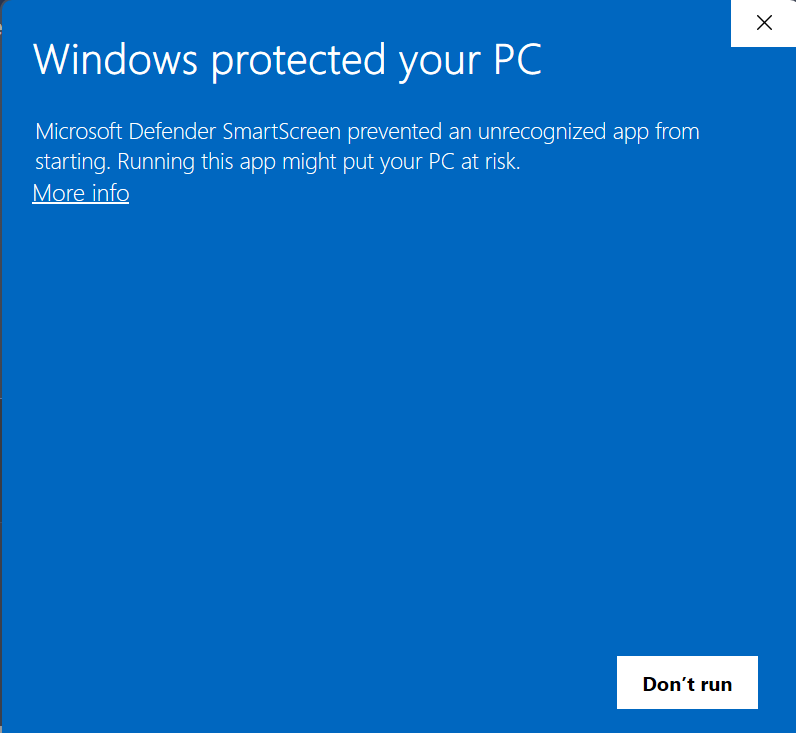
If you see the blue Windows protected your PC screen, select More info.
Windows will reveal the app details and a Run anyway button. Confirm that you intentionally downloaded the ListingGuard installer from the official site, then choose Run anyway.
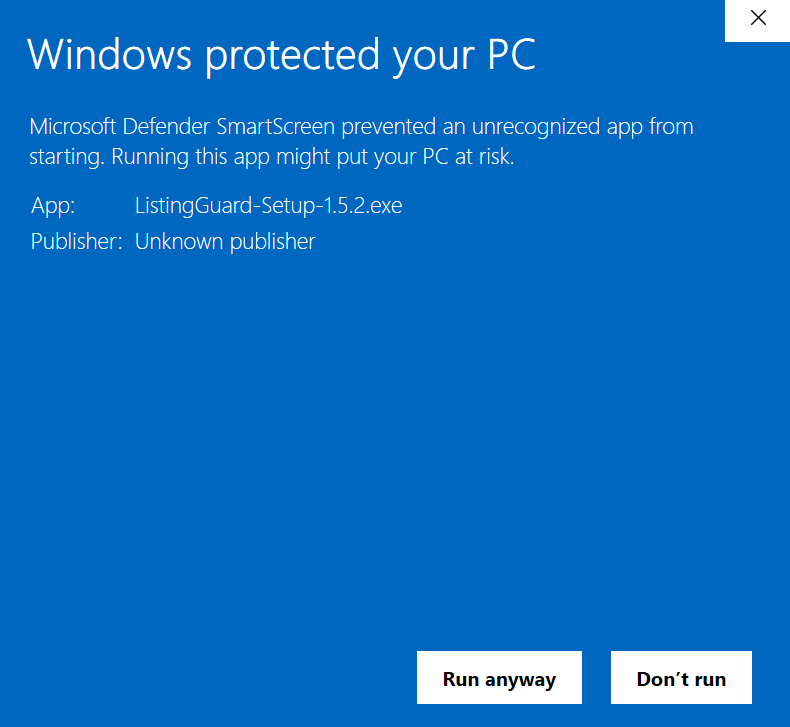
The installer version shown in this example may differ from the current release.
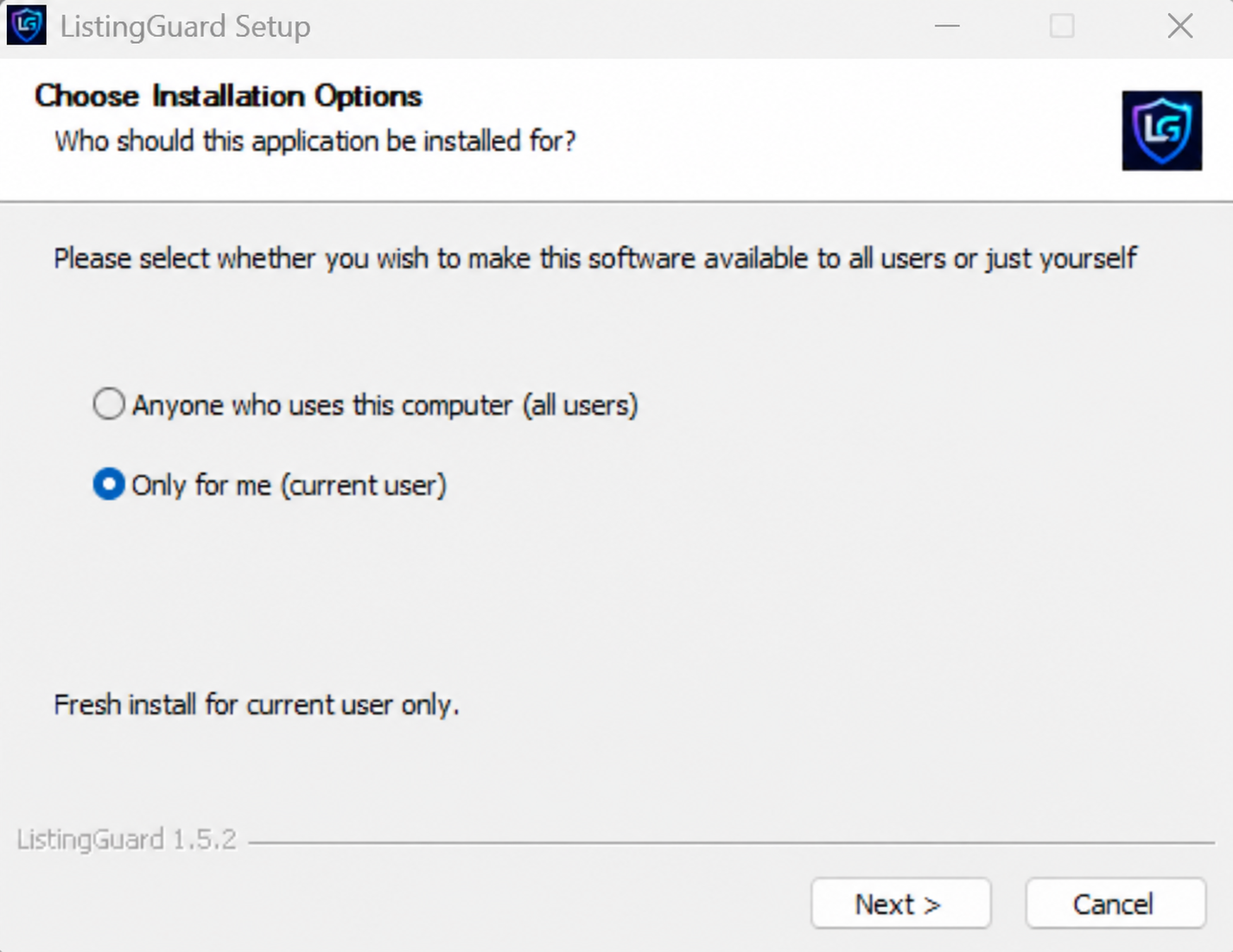
The setup wizard may ask whether ListingGuard should be installed for everyone on the computer or only for the current Windows user. Choose the option that fits your PC, then select Next.
Finish the installer prompts. When setup completes, open ListingGuard and follow the in-app steps to connect your Etsy shop.
SmartScreen uses publisher and reputation information when evaluating downloaded apps. A newer or less commonly downloaded application may receive an extra warning while Windows has limited reputation information about it.
“Windows protected your PC” or “unrecognized app” is not, by itself, a malware detection. Follow the steps above only when you intentionally downloaded ListingGuard from the official website.
If Windows Security identifies a specific malware threat, do not disable Defender, add exclusions, or force the installer to run. Stop and contact support so the file can be investigated.
Some Windows 11 systems may enforce stricter app-control rules and may not offer a per-app Run anyway option. ListingGuard does not recommend disabling Windows security features just to install the app.
You can stop at any point. Contact ListingGuard support and include a screenshot of the Windows message you are seeing before continuing.
Start the free trial with no credit card required.